Note: You must be logged in to your @seq gmail account to view this slide show. It has been shared with district staff and not made publicly viewable.

Tuesday, August 16, 2016
Send Voice Mails to your Email
Did you know you could send your voicemails to your email (and even play the audio right from your email), so you don't have to dial in and check your phone each day? Here are the instructions to set this up.
Note: You must be logged in to your @seq gmail account to view this slide show. It has been shared with district staff and not made publicly viewable.
Note: You must be logged in to your @seq gmail account to view this slide show. It has been shared with district staff and not made publicly viewable.

Tuesday, May 3, 2016
Save Some Time by Using the Preview Pane in Gmail
Do you miss the preview pane that allowed you to preview your emails from your inbox?

 There is a way to enable this in Gmail.
- In Gmail, click on the gear.
- Then, choose "Settings".
- In Settings, choose the "Labs" tab.
- Enable "Preview Panes".
- Press "Save Changes" at the bottom of the page.
- Now, when you are back on your Gmail page, click the arrow next to the panes icon (at the top left of your screen) to choose how you want to view your preview pane. (The sample above is showing "Vertical Split.")


Tuesday, April 26, 2016
Creating a Google Custom Search Engine
Have you ever wanted your students to search a topic on the internet, but were afraid of the results that they would get? Are the hits they get age appropriate or even the right topic? You can create your own custom search engine, where the students can search and only find websites or sources that you want them to find.
What you need to do first is find all of the sites that you like. You will then go to Google Custom Search Engine.


What you need to do first is find all of the sites that you like. You will then go to Google Custom Search Engine.
How To
Choose "New Search Engine" and then start copying and pasting your websites into the boxes.
Change the name of your Custom Search Engine. (It auto-names it the first website you enter.)

Now you will be able to get the link to send out or an html embed code to add the search bar to your own website.

Here is a sample Custom Search Engine for Science Current Event/News Articles. This is what it looks like when it is embedded into a website:
Tuesday, March 8, 2016
Creating Self-Graded Online Exams
I've had a few people ask me lately for tools to administer online exams. There are a lot of tools out there, some free, many paid. Here are my favorites:
I really love Quia.com, a paid testing software, that also allows students to play review games as well. It gives you great reports, and is easy to create questions. There is a volume discount if you get a group of teachers together.
Another online exam platform I have used is built into Canvas, a Learning Management System (LMS). I was able to create online exams, and it graded all the multiple choice and fill in the blank answers for me, and also made it easy to grade the short answer/essay type questions. However, this is just one part of the Canvas system, and you may not want to use a full LMS just for quizzes. A bonus, is that using Canvas is free.
If you are not willing to pay for a system, or want to use an LMS just for the quiz/test feature, a great resource is Google Forms. You can create a quiz using a form, and then use Flubaroo to grade it for you. Below are instructions on how to great a Google form, and how to use the Flubaroo Add-on.
I really love Quia.com, a paid testing software, that also allows students to play review games as well. It gives you great reports, and is easy to create questions. There is a volume discount if you get a group of teachers together.
Another online exam platform I have used is built into Canvas, a Learning Management System (LMS). I was able to create online exams, and it graded all the multiple choice and fill in the blank answers for me, and also made it easy to grade the short answer/essay type questions. However, this is just one part of the Canvas system, and you may not want to use a full LMS just for quizzes. A bonus, is that using Canvas is free.
If you are not willing to pay for a system, or want to use an LMS just for the quiz/test feature, a great resource is Google Forms. You can create a quiz using a form, and then use Flubaroo to grade it for you. Below are instructions on how to great a Google form, and how to use the Flubaroo Add-on.
Tuesday, February 9, 2016
Safer Internet Day 2016
Today is Safer Internet Day.
"Safer Internet Day is an event for promoting safer and responsible usage of online technologies among young people. It also raises awareness of emerging concerns such as cyberbullying and social networking privacy. The theme of Safer Internet Day 2016 is “Play your part for a better Internet!” -Forbes TechHere are some tips that will keep you and your students a little bit safer when working online.
Keeping Your Password Safe
- Never, EVER, share password, especially over the internet or through your email.
- Make sure your password is strong. Many passwords I have seen (from people who have shared them with me - ACK! Don't do that - see number 1), have not been strong passwords.
- Don't use the same password for all of your accounts. Change them up, each account should have it's own unique password.
- Change your password frequently. If you have never changed it, it's time. To change your district password (for GAFE, School Loop, etc.) click here.
Protect Your Google Account with Two-Step Verification
If someone hacks your Google account and figures out your password, you can prevent them from accessing your Google account using Google's 2-step verification.
If you set up 2-step verification, you have to log in to your account using your email and password, and then a generated code that is sent to your cell phone. Most likely, if someone hacks your account, they won't have access to your cell phone, so your account will be safe.
Here are instructions on how to set up 2-step verification:
If someone does hack your account, and is able to gain access, the first thing you want to do is change your password. To change your @seq.org password (for Google, SL, IC, etc.), go to this website.
If you set up 2-step verification, you have to log in to your account using your email and password, and then a generated code that is sent to your cell phone. Most likely, if someone hacks your account, they won't have access to your cell phone, so your account will be safe.
Here are instructions on how to set up 2-step verification:
**I would only recommend doing this if you always have your cell phone with you. You can also print out some codes that you can keep in your wallet in case you don't have access to your phone. If you are using your own personal computer, you can make it so it doesn't ask you for the code each time you log in.
If someone does hack your account, and is able to gain access, the first thing you want to do is change your password. To change your @seq.org password (for Google, SL, IC, etc.), go to this website.
Free 2GB of Google Storage to do an Internet Security Checkup
Google is providing 2GB of free storage if you do a internet Security Checkup today. (You already have unlimited storage on your @seq GAFE account, but it doesn't hurt to do a checkup anyways. But, if you have a personal Google account, 2GB is a great deal!) Click here to do a security checkup. Here are instructions on how to do the checkup if you need help.Safer Internet Day Resources
Click here for additional resources (including lesson plans) that you can use with your students.Tuesday, January 12, 2016
Using Revision History in GAFE
Google Docs, Slides, Sheets, and Drawings have a really great feature called Revision History. Revision History allows the editors of the document to see all changes made in the history of the document, and who made those changes and when. You can also go back and restore previous versions of the document. In order to see revision history on a document, you must have editing rights.
 | |
|
Why would you use Revision History?
- If you are using a document as a part of your lesson, and make changes during the class period, revert back to an earlier version to "reset" it for the next period.
- Check if students followed suggestions from peer or teacher editing - You can go back and see if students made changes that were suggested. (You can also always see all comments and suggested edits, even if a student resolved them, by clicking on "Comments" at the top of the screen, next to the "Share" button.)
- Plagiarism check - if a huge segment of text gets added at one time, a student copied/pasted it into the doc. (Be sure to click "Show more detailed revisions" at the bottom of the revision history window to check this.)
- Accidents - sometimes when working in groups, a student may accidentally change something. Anyone who has editing rights can go back and see the previous version, or copy something from a previous version and then go back to the most recent version and paste in "old" text/images.
- Sabotage - sometimes students don't behave as they should in a document that is shared with multiple people. You will always have a history of who did what, and can restore previous versions. (The document must be shared w/ specific people, not "anyone with a link" to see the names of who did what.)
How do you access Revision History?
There are two ways to access Revision History.
- Click on "All changes saved in Drive" at the top of any document.

- Go to "File" and then choose "See Revision History."


Tuesday, December 8, 2015
Review Games - Add Some FUN to Review Week
Reviewing for final exams can be a little tedious, both for students and teachers. There are some great technology tools that can add a little (or a lot) of fun to reviewing past material. You may already be familiar with Kahoot, but have you heard of Quizizz?
Both tools are free, gameshow-like quiz games, where you can enter in your own questions, or choose games created by other teachers. The teacher projects the game, and the students use their cell phones or chromebooks to answer the questions.
Many teachers in our district have been using Kahoot, and students love it. I have heard stories of students playing Kahoot in small groups on their own time, because it is fun. And the best part, they are learning and reviewing at the same time. Quizizz is a newer game, that is very similar. But it has some additional tools and benefits that put it a little over the top of Kahoot:

Both tools are free, gameshow-like quiz games, where you can enter in your own questions, or choose games created by other teachers. The teacher projects the game, and the students use their cell phones or chromebooks to answer the questions.
Many teachers in our district have been using Kahoot, and students love it. I have heard stories of students playing Kahoot in small groups on their own time, because it is fun. And the best part, they are learning and reviewing at the same time. Quizizz is a newer game, that is very similar. But it has some additional tools and benefits that put it a little over the top of Kahoot:
- Quizizz allows students to go at their own pace. This gives students the time to really think through the questions, instead of just choosing an answer to be the fastest. (You can also run it so it is time, like Kahoot.)
- Quizizz displays the questions right on the students device, so they don't need to look up at the screen to see the question. This makes it much easier for the students to stay engaged, and not get confused.
- Quizziz has fun memes after each question that students love.
- Quizziz allows students to take the quizzes at home for homework assignments. You can leave a quiz open for up to two weeks.
For instructions, an overview video, and a walkthrough to use this with your students, please check out this link.
If you need any help creating your first quiz, or want me to help you run the game with your class, please book an appointment or contact me.
Tuesday, December 1, 2015
Use the Hour of Code to Teach Important Skills to ALL Students
Why should ALL teachers participate in the hour of code with their students? You may be thinking, "I don't teach computer science, and I don't want to give up an hour of my valuable class time".
While you may not be teaching a computer science course, coding teaches students problem solving skills, critical thinking, collaboration, and perseverance. These are all skills that any teacher, in any subject area, would love for their students to have and practice. And, coding is used to help people in all job fields, so it is a great way to share with your students applications in the work force to your subject area.

Getting started in coding is actually easy, and as a teacher, you do not need to know how to code yourself! But honestly, it's a lot of fun. Here's a Star Wars game I created after completing a Hour of Code tutorial. (Stay away from the Storm Troopers, and try to get the Tauntuans.)
While you may not be teaching a computer science course, coding teaches students problem solving skills, critical thinking, collaboration, and perseverance. These are all skills that any teacher, in any subject area, would love for their students to have and practice. And, coding is used to help people in all job fields, so it is a great way to share with your students applications in the work force to your subject area.

Getting started in coding is actually easy, and as a teacher, you do not need to know how to code yourself! But honestly, it's a lot of fun. Here's a Star Wars game I created after completing a Hour of Code tutorial. (Stay away from the Storm Troopers, and try to get the Tauntuans.)
How do you participate in the Hour of Code?
The Hour of Code takes place during Computer Science Education Week, December 7-13. All you need is an hour (or 50 minutes if that is all you have). You don't even need devices, but it is a little more fun if you do.- Go to the Code.org tutorial page and choose a tutorial for your class (or let your students choose their own). I recommend the Star Wars one. It has a Java version which is geared for older students, and students can create their own game at the end. Also, students can complete these tutorials using a computer, chromebook, or even on their phones using an internet browser.
- It helps if you go through the tutorial yourself ahead of time. But honestly, you don't need to. The students will be fine doing it without you having to be an expert.
- Have the students create an account, and work on the tutorial. You will be amazed watching your students create, think critically, and fail and try again.
- If you don't have devices, go to code.org/learn and scroll down to "unplugged computer science".
Monday, November 23, 2015
Spotlight Apps: Point Students in the Right Direction
When projecting websites or slideshows to students, sometimes you need to make something stand out. Some of you may have seen me use a spotlight tool to draw attention to specific parts of the screen in my PD Sessions or on screencasts. I have been using Mouselight for my Mac for a few years and just finally found a PC version of a mouse pointer/spotlight.
Unfortunately, these tools are not free. I have found that spending that little amount out of my pocket has been worth it, for the amount of times I have used it, with students in class, as well as with teachers in PD workshops.
Here are two different versions of a spotlight for each operating system. (Sorry, there is nothing that I know of that works with Chromebooks, yet.)
Mac: Mouselight $0.99

PC: Pointerfocus.com $9.95 (You'll get a free 10 minute trial to test it out)

Unfortunately, these tools are not free. I have found that spending that little amount out of my pocket has been worth it, for the amount of times I have used it, with students in class, as well as with teachers in PD workshops.
Here are two different versions of a spotlight for each operating system. (Sorry, there is nothing that I know of that works with Chromebooks, yet.)
Mac: Mouselight $0.99

PC: Pointerfocus.com $9.95 (You'll get a free 10 minute trial to test it out)

Tuesday, November 17, 2015
Research in Google Docs - Using the Research Tool and Easy Bib Add-on
Did you know that your students can research their topics without leaving their Google Doc, using the Research Toolbar? And it will even add in citations in MLA, APA, or Chicago Style?
Or, if you want a bibliography, students can cite their sources using the Easy Bib Add-on?Easy Bib is an amazing tool to help you write bibliographies. The free Add-on integrates into your Google Docs. Once you install the Easy Bib Add-on, you can use it in each of your documents to help you create a perfectly formatted bibliography in hundred's of citation styles. It even indents the second line!
Here's a video on how to use the Easy Bib Add-on as well as how to use the Google Research Tool to find sources, insert them into your document, and cite the sources as footnotes.
Or, if you want a bibliography, students can cite their sources using the Easy Bib Add-on?Easy Bib is an amazing tool to help you write bibliographies. The free Add-on integrates into your Google Docs. Once you install the Easy Bib Add-on, you can use it in each of your documents to help you create a perfectly formatted bibliography in hundred's of citation styles. It even indents the second line!
Here's a video on how to use the Easy Bib Add-on as well as how to use the Google Research Tool to find sources, insert them into your document, and cite the sources as footnotes.
Tuesday, November 10, 2015
Copy and Paste - Using Your Clipboard History
Have you ever needed to copy and paste more than one thing at a time? I am usually working with multiple tabs open on my Chrome Browser, and many times have multiple links or names that I am trying to paste into one document at the same time. And it drives me nuts when I "lose" something in my clipboard when I copy something new.

To Use Clipboard History:

You will love this extension. It will save you lots of time and make things just a little bit easier for you! Just to write this blog post, I used the extension three times!
Note: You do need to be signed in to Chrome (not just signed into your Gmail account) for this to work.
The clipboard is the place where the things you copy are stored. You can add things to the clip board by pressing Control C on a PC, Command C on a Mac, or right clicking on something and choosing Copy. To paste what is on your clipboard you will press Control V on a PC, Command V on a Mac, or right click and press Paste.I'm sure you are used to people saying "There's an app for that".... Well, now there's an extension for that! Clipboard History is a great Chrome extension that stays up next to your Omnibox (URL address bar) and keeps a history of all of the things you have copied.
 |
| This is a list of things I have "copied" and I can click on any of these to bring it back to my clipboard to paste into a document. |
- The first thing you need to do to use Clipboard History is download the extension. Click on the Clipboard History link and click on the blue "+Free" button.
- After you have installed it, all you have to do is click on the icon of the green (it used to be orange, like you see in the GIF below) clipboard up on the right of your screen, next to the Omnibox (address bar).
- Then click on the information you previously copied and want to use again, and it brings it back into your clipboard and allows you to paste that information into whatever you are working on.
You will love this extension. It will save you lots of time and make things just a little bit easier for you! Just to write this blog post, I used the extension three times!
Note: You do need to be signed in to Chrome (not just signed into your Gmail account) for this to work.
Tuesday, November 3, 2015
Lesson Crashers Episode 1: Psychology - Functions of the Brain
I must admit, sometimes I watch a little too much TV, especially when I should be cleaning my house, preparing a lesson, etc.
But some TV can be a good thing - educators can get some great ideas for lessons based on TV shows. There are hundreds of Jeopardy style review games and templates on the web. The Exploratorium Teacher Institute runs an "Iron Science Teacher" web show each summer based on Iron Chef where teachers create science lessons using a secret "ingredient." Jennifer Kloczko, an administrator from Natomas, got inspiration for the Professional Development she leads from Food Network's "Chopped."
Yard Crashers
 This summer, I watched a lot of HGTV and one of my favorites was Yard Crashers. The main premise of the show is that some home owners are shopping at a Home Depot type store, in the garden section, and the host sneaks up on them, volunteering to design and landscape their yard. The show provides the designer, supplies, and a construction/landscaping crew, and the home owners pitch in too.
Lesson Crashers
This gave me the idea to create my own spin on the show called "Lesson Crashers." The idea behind "Lesson Crashers" is that I would help a teacher reinvent a lesson, integrating technology. I'd meet with the teacher, we'd discuss a lesson or project that they have used before, and figure out what new goals they have or hopes for improvement. Working together, we'd then brainstorm some ideas on how we can meaningfully integrate technology to enhance the lesson. When the teacher then teaches the lesson, I can provide support if needed (ex. coteach, observe, etc.). Then, we'd debrief the lesson, and come up with next steps.
Here is the first Lesson Crasher lesson. Michelle McKee, a psychology teacher at Carlmont, graciously volunteered to test this out with me, and we wrote up a description of the process. I am hoping that this lesson will spark some ideas that you can use in your own classes. If you would like to be on the "next episode" of "Lesson Crashers", please book an appointment with me and I'd be happy to help you integrate instructional technology in your curriculum.
But some TV can be a good thing - educators can get some great ideas for lessons based on TV shows. There are hundreds of Jeopardy style review games and templates on the web. The Exploratorium Teacher Institute runs an "Iron Science Teacher" web show each summer based on Iron Chef where teachers create science lessons using a secret "ingredient." Jennifer Kloczko, an administrator from Natomas, got inspiration for the Professional Development she leads from Food Network's "Chopped."
Yard Crashers
This summer, I watched a lot of HGTV and one of my favorites was Yard Crashers. The main premise of the show is that some home owners are shopping at a Home Depot type store, in the garden section, and the host sneaks up on them, volunteering to design and landscape their yard. The show provides the designer, supplies, and a construction/landscaping crew, and the home owners pitch in too.Lesson Crashers
This gave me the idea to create my own spin on the show called "Lesson Crashers." The idea behind "Lesson Crashers" is that I would help a teacher reinvent a lesson, integrating technology. I'd meet with the teacher, we'd discuss a lesson or project that they have used before, and figure out what new goals they have or hopes for improvement. Working together, we'd then brainstorm some ideas on how we can meaningfully integrate technology to enhance the lesson. When the teacher then teaches the lesson, I can provide support if needed (ex. coteach, observe, etc.). Then, we'd debrief the lesson, and come up with next steps.
Here is the first Lesson Crasher lesson. Michelle McKee, a psychology teacher at Carlmont, graciously volunteered to test this out with me, and we wrote up a description of the process. I am hoping that this lesson will spark some ideas that you can use in your own classes. If you would like to be on the "next episode" of "Lesson Crashers", please book an appointment with me and I'd be happy to help you integrate instructional technology in your curriculum.
Tuesday, October 27, 2015
Best Practices for Teacher Management of Chromebook Carts
 To best protect the Chromebooks and ensure that they last as long as possible for you to continue using, here are some best practices.
- Assign each student a number. That is the Chromebook they will ALWAYS use in your class, and the Chromebook they are responsible for.
- Print out a list for each class that you pin on the wall above the cart, in case they forget their assigned computer.
- Have students write down their number in their notebook or planner. (Or print out labels for each student with their name and number to put on their class notebook, planner, etc.)

- If new students join your class, just assign them an empty number. Don’t go re-organizing or alphabetizing your list after you’ve assigned numbers. The students will get confused.
- Distribute Chromebooks. If cart is open, students know to pick up their Chromebook on the way into class. If it’s closed, they are not to grab one.
- Make sure students only get their Chromebook, not ones for friends too. When they carry too many, they drop them.
- Students should use two hands to carry a Chromebook, and never have them open when they are walking.
- Students should double check that their Chromebook is actually the right number, in case the person before them put it away in the wrong spot. Remember, they are responsible for their assigned number.
- Stand near the cart or door to make sure no chromebooks wander out of class.
- If you are having students get Chromebooks after the beginning of class, call up students in groups. Ex. 1-10, 10-20, 20-30, etc.
- Check the Chromebooks.
- If there is ANYTHING wrong with the Chromebook, the student should tell you right away.
- That way you know that it was broke the period before, and know which student is responsible.
- Notify the appropriate AVP immediately if a student broke a device.
- Sign In. Students should be sure they sign in to their GAFE account.
- If they open the device, and it’s already on the internet, the person before them is signed in.
- Have them sign out the other person, and sign in themselves.
- Student care of computers.
- No food or drink next to the devices. Keeping the units clean will help extend their life.
- Use the device on a flat surface. Using the device on your lap increases the risk of damage.
- Do not attach personal accessories to the Chromebooks. Headphones can be used when directed by staff.
- Not charging student cell phones through the USB port will extend battery life during the day.
- Sign Out. When done, make sure students sign out. (at the bottom right corner of the screen)

- Students should return their Chromebook in the last few minutes of class, NOT after the bell rings.
- Only have students plug in Chromebooks at the end of the day, not each period. It takes up too much time.
- Call up students in groups to put away their Chromebook, and be sure they put it in the correct slot. 1-10, 10-20, etc.
- Make sure each computer is put away (and plugged in if this is the last period) and close the cart door BEFORE you let any students leave the class.
- You don’t want to sit and plug in all 35 chromebooks, so make sure the students do it for you.
- Don’t allow students to leave the class when Chromebooks are out.
- This is how Chromebooks are stolen. Even if you collect the Chromebook from the student who is leaving the room, that doesn’t ensure that they didn’t put another one in their backpack before leaving.
- Make sure all Chromebooks are accounted for.
- Never leave the cart unlocked when you are not in the room.
- Make sure the cart is locked, plugged in, and charging at the end of the day.
- Please remember that the cart is checked out to you, the teacher, not the students. So you are ultimately responsible for the contents.
- Be sure everything is plugged in and in the correct spot, before the cart moves on to another teacher. You wouldn't want to open the cart and find that half of the Chromebooks aren't plugged in and charged.
- Devices should not be used when you are not there. Your class should not be using the carts when you have a substitute teacher.
- Notify your school’s site tech regarding damage or malfunction of Chromebooks
- Moving Carts
- Only teachers should move carts, do not allow students to move cart around the campus.
- Unplug power connector, from wall, before moving, and wrap the cord around the cord management.
- When transporting Chromebooks without cart, do not stack more than 4 books on top of each other or the screens will crack.


Tuesday, October 20, 2015
Digital Citizenship Week - Lesson Ideas Linking Content to Digital Citizenship
This week is Digital Citizenship Week. A week to promote teaching digital citizenship to all of our students.
What is digital citizenship?
Our students are prolific users of technology, especially cell phones, and use it regardless of whether we allow the use of it in our classrooms. However, our students don't always use technology in a responsible manner.
It is up to us, as educators, to guide our students and teach them how to use technology as an educational tool, and to use it responsibly in all aspects of their lives. And, since we don't always have access to computer labs, why not take advantage of the computers our students carry with them at all times?

What is digital citizenship?
"Digital citizenship can be defined as the norms of appropriate, responsible behavior with regard to technology use." - digitalcitizenship.netWhy should we teach digital citizenship?
Our students are prolific users of technology, especially cell phones, and use it regardless of whether we allow the use of it in our classrooms. However, our students don't always use technology in a responsible manner.
It is up to us, as educators, to guide our students and teach them how to use technology as an educational tool, and to use it responsibly in all aspects of their lives. And, since we don't always have access to computer labs, why not take advantage of the computers our students carry with them at all times?

Ideas to Teach Digital Citizenship & Take Advantage of Student Devices
- Use Google Classroom's Question feature to have an online discussion about a video, text, or activity you have done in class. Teach students the proper way to write a response, and how to respectfully agree, disagree, or ask questions of each other.
- Have students write blog posts and comment on other's blogs to share their learning and ideas with others around the world, not just their classmates.
- Use Instagram to do a visual imagery lesson, and teach students how to properly post, use hashtags, and comment on each other's feeds.
- Use Twitter to participate in an online chat to practice argumentation with claims, evidence, and reasoning, as well as to develop a positive, professional, social media presence.
Tuesday, October 13, 2015
Short Time Fillers with Hidden Benefits
Sometimes the timing of a lesson doesn't go as planned, and you have a few extra minutes of class. Some Google search tools can provide a few minutes of activity to fill the time, but also provide some skills practice that will help your students when they are doing research for your class.


A Google A Day
Have you ever had a hard time finding exactly what you are looking for when searching the web? It is really hard to learn how to Google Search effectively, especially for our high school students. Google has a fun game, called "A Google A Day" which allows students to practice their search skills. It asks three questions, that generally are multipart questions, and it has a search bar on the same page to practice. They also have a great tip section and can provide hints. I used this with my classes frequently, and they had a blast. I let them use their cell phones and the student who solved it first had to explain to the class exactly how they found the answer. Through the year, I noticed their search skills greatly improved. (Many times I'd allow students to use their cell phones, because we didn't have the cart that day.)

Geoguesser
Geoguesser is a fun game that allows students to use their critical thinking skills. They will see short sections of Google Streetview maps, and using context clues from the maps, they need to determine where in the world the map is located. This would be such a great tool to use in World Language or Social Science courses, as students will see different parts of the world.

If you want to create your own Geoguesser game, with your own locations, you can do that with Geosettr. If you are introducing a new unit, reviewing locations in a novel or a historical event, or locations that it's inhabitants speak the language you teach, this would be an amazing tool to use.

Smarty Pins
Play some trivia with Smarty Pins, where you can choose the category, such as science and geography, arts and culture, or history and current events, and then find the locations on a map.


Just For Fun: Fun Fact
Sometimes I would write famous quotes or fun facts on the board to change things up for my students. If you type "fun fact" into the Google Omnibox (search bar), you will find fun facts with links to more information. You can also click "ask another question" for more fun facts!

Tuesday, October 6, 2015
Send Your Voicemail to Your Email
In the classroom, it was always really hard to check my voicemail. Especially when I was sharing multiple classrooms and didn't have a regular routine to be able to sit down, call the voicemail number, and check for new voicemail.
There is a solution! You can automatically send each new voicemail to your Gmail account. You will receive an email letting you know you have a voicemail, and you can even play the message directly from your email.
Tuesday, September 29, 2015
Submit an IT Support Desk Ticket
If you need help with your computer, software, password, SMARTBoard, phone, voicemail, speakers, etc., you must put in a support desk ticket to get help. The image to the right shows all the types of IT problems that should be entered into the IT support website. Don't just send an email to your site's tech support, all requests need to be placed in the online help desk.

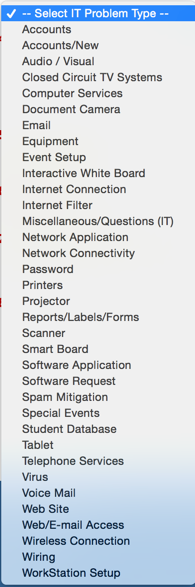
Below are instructions on how to use the support system.
Tuesday, September 15, 2015
Mute Unwanted Email Chains
Sometimes people get a little carried away with "Reply All", and an important email announcement quickly becomes an email thread that you just don't want or need to see.

Did you know you can "Mute" an email thread/chain in Gmail? Muting means the future replies to this thread will not enter your "Inbox". These emails aren't deleted or blocked, you can still find them and all future replies in your "All Mail" folder. By muting these emails, you won't be bothered by all of the responses to the email.
Here's how I might use it.... an email was sent about a social event that I can not attend. Soon, everyone on campus is replying to this email with what potluck items they are bringing. I don't want to keep getting new messages for this thread in my inbox. If I mute the email, I will still get the emails, but they won't show up in my inbox, instead, they will be automatically archived, and I can find them in my "All Mail" folder. (Note: You may want to check out your muted threads every once in a while, because sometimes people use the same thread to change the subject of the email.)
To mute an email, click on "More". Then choose "Mute".

Tuesday, September 8, 2015
Not Your Same Old Boring Google Slides
Are you bored with the choices you have for the Google Slides themes? They just released some new ones (9/2/15), which is really exciting. But sometimes you want something a little different. Did you know you can create your own? You can add your logo so it automatically appears on each slide, change the default font, size, and color, or even add your own background images. So when you choose "new slide", it will already have all the right fonts, colors, images, etc.
The directions below show how to edit your master which allows you to customize your slides layouts.
The directions below show how to edit your master which allows you to customize your slides layouts.
If you are not feeling too creative yourself, you can find some free to use slides templates that are not your same old boring Google Slides themes on Slides Carnival. Slides Carnival has about 30 different themes to choose from, and they are frequently adding more. They are free to use and include instructions on how to provide attribution to the creator.
Tuesday, September 1, 2015
Access District Wifi with Your Device
If you have your own personal laptop or device, and want to connect to the district wifi, please follow these instructions:
If your students would like to connect to wifi, here are instructions for them:
Subscribe to:
Posts (Atom)