Showing posts with label Gmail. Show all posts

Tuesday, May 3, 2016

Save Some Time by Using the Preview Pane in Gmail


Do you miss the preview pane that allowed you to preview your emails from your inbox?


There is a way to enable this in Gmail.

  1. In Gmail, click on the gear.
  2. Then, choose "Settings".
  3. In Settings, choose the "Labs" tab.
  4. Enable "Preview Panes".
  5. Press "Save Changes" at the bottom of the page.
  6. Now, when you are back on your Gmail page, click the arrow next to the panes icon (at the top left of your screen) to choose how you want to view your preview pane.  (The sample above is showing "Vertical Split.")


Tuesday, February 9, 2016

Safer Internet Day 2016

Today is Safer Internet Day.
"Safer Internet Day is an event for promoting safer and responsible usage of online technologies among young people. It also raises awareness of emerging concerns such as cyberbullying and social networking privacy. The theme of Safer Internet Day 2016 is “Play your part for a better Internet!”  -Forbes Tech
Here are some tips that will keep you and your students a little bit safer when working online.

Keeping Your Password Safe

  1. Never, EVER, share password, especially over the internet or through your email.
  2. Make sure your password is strong.  Many passwords I have seen (from people who have shared them with me - ACK! Don't do that - see number 1), have not been strong passwords.                        
  3. Don't use the same password for all of your accounts.  Change them up, each account should have it's own unique password.
  4. Change your password frequently.  If you have never changed it, it's time. To change your district password (for GAFE, School Loop, etc.) click here.

Protect Your Google Account with Two-Step Verification


If someone hacks your Google account and figures out your password, you can prevent them from accessing your Google account using Google's 2-step verification.

If you set up 2-step verification, you have to log in to your account using your email and password, and then a generated code that is sent to your cell phone.  Most likely, if someone hacks your account, they won't have access to your cell phone, so your account will be safe.


Here are instructions on how to set up 2-step verification:

**I would only recommend doing this if you always have your cell phone with you.  You can also print out some codes that you can keep in your wallet in case you don't have access to your phone.  If you are using your own personal computer, you can make it so it doesn't ask you for the code each time you log in.

If someone does hack your account, and is able to gain access, the first thing you want to do is change your password.  To change your @seq.org password (for Google, SL, IC, etc.), go to this website.


Free 2GB of Google Storage to do an Internet Security Checkup

Google is providing 2GB of free storage if you do a internet Security Checkup today.  (You already have unlimited storage on your @seq GAFE account, but it doesn't hurt to do a checkup anyways.  But, if you have a personal Google account, 2GB is a great deal!)  Click here to do a security checkup.  Here are instructions on how to do the checkup if you need help.

Safer Internet Day Resources

Click here for additional resources (including lesson plans) that you can use with your students.

Tuesday, October 6, 2015

Send Your Voicemail to Your Email

In the classroom, it was always really hard to check my voicemail.  Especially when I was sharing multiple classrooms and didn't have a regular routine to be able to sit down, call the voicemail number, and check for new voicemail.  

There is a solution!  You can automatically send each new voicemail to your Gmail account.  You will receive an email letting you know you have a voicemail, and you can even play the message directly from your email.
  

Tuesday, September 15, 2015

Mute Unwanted Email Chains

Sometimes people get a little carried away with "Reply All", and an important email announcement quickly becomes an email thread that you just don't want or need to see.  

Did you know you can "Mute" an email thread/chain in Gmail?  Muting means the future replies to this thread will not enter your "Inbox".  These emails aren't deleted or blocked, you can still find them and all future replies in your "All Mail" folder.  By muting these emails, you won't be bothered by all of the responses to the email.

Here's how I might use it....  an email was sent about a social event that I can not attend.  Soon, everyone on campus is replying to this email with what potluck items they are bringing.  I don't want to keep getting new messages for this thread in my inbox.  If I mute the email, I will still get the emails, but they won't show up in my inbox, instead, they will be automatically archived, and I can find them in my "All Mail" folder.  (Note:  You may want to check out your muted threads every once in a while, because sometimes people use the same thread to change the subject of the email.)

To mute an email, click on "More".  Then choose "Mute".  


Tuesday, April 7, 2015

Protect your Google Account with Two-Step Verification

If someone hacks your Google account and figures out your password, you can prevent them from accessing your Google account using Google's 2-step verification.

If you set up 2-step verification, you have to log in to your account using your email and password, and then a generated code that is sent to your cell phone.  Most likely, if someone hacks your account, they won't have access to your cell phone, so your account will be safe.

Here are instructions on how to set up 2-step verification:
**I would only recommend doing this if you always have your cell phone with you.  You can also print out some codes that you can keep in your wallet in case you don't have access to your phone.  If you are using your own personal computer, you can make it so it doesn't ask you for the code each time you log in.

If someone does hack your account, and is able to gain access, the first thing you want to do is change your password.  To change your @seq.org password (for Google, SL, IC, etc.), go to this website.

Tuesday, December 9, 2014

Translate your Gmail (and Loop Mail)

Now that we are using School Loop, more lines of communication have opened up between parents and teachers.  Parents can even use School Loop in Spanish and Chinese.  

That means that some parents are now communicating and sending emails in their native language to teachers, but many times a teacher does not speak or read this language.

Gmail actually has Google translate built into Gmail, which can easily translate messages in other languages into English.  So if you have your Loop Mail being forwarded to your Gmail, you can instantly translate it into English.  

Forward LoopMail to your Gmail
The first step is to make sure you are autoforwarding your Loop Mail from School Loop to your Gmail account.  Here's how to do that:


Translate Mail into English
Next, you can translate the email into English.


Google Translate isn't a Perfect Solution
Google Translate is not perfect, so you must be aware that the wording may be off.  Here's a fun example of how "not perfect" Google Translate is.  

If you are not a fan of the Fresh Prince, and are looking for a more recent song, check out this Frozen Google Translate video.


Check with your School for Procedures and Translation Services
Also, while you can translate this email into English, you can't translate your response in Gmail.  Many schools in our districts have a translator who will translate responses or contact parents for you.  While translating the emails in Gmail is helpful and you get an idea of what the parent is saying, I would not recommend using Google Translate as your communication method.  Please speak with your department chair or IVP to find out your school's procedures for translation services.


Tuesday, November 25, 2014

Gmail Vacation Responder

With the holiday's coming up, you definitely won't be checking your email over the break.  So you might be wondering how to set up your vacation response for your Gmail.  

It's actually a lot easier than it was in Groupwise, and you can have it automatically turn off by setting an end date!  Here are instructions on how to set up the Gmail Vacation Responder:  


Happy holidays!

Tuesday, November 4, 2014

Tips for Managing Your Gmail Inbox


There is always too much email.  When you sit down to read and act on the emails, it can feel like you are drowning and will never get your head above water.  Fortunately, there are some ways to clean up your inbox and get it down to zero.  Or if not zero, something more manageable.

Search
Gmail is created by Google.  In my opinion, Google is the best search tool out there.  And, the best part about Gmail is that it can be fully searched using Google's search engine.  

You can search and find anything in your Gmail account by using the search box at the top of the Gmail page.  And if you click on the little arrow at the right side of the search box, you will be able to do some pretty cool advanced searches, like search for emails that have specific words, have an attachment, or are within a specific date range.  (You can also use search words instead of clicking on the arrow to get to the advanced search.  Check out this PDF Gmail Search Cheat Sheet from Alice Keeler.) So go ahead, and file away those emails using labels or the archive tool, because you can easily search for your emails later.  


Trash vs. Archive
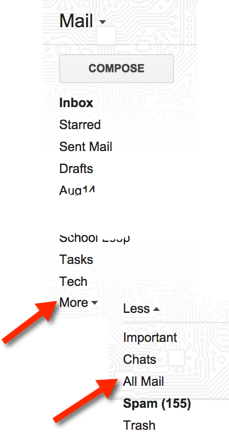
In our Google Apps for Education account, you have UNLIMITED free storage.  So there is no need to delete your emails.  And, if you delete an email, it will permanently disappear in 30 days, so you won't be able to find it later.  So instead of deleting your emails, ARCHIVE them.  In Gmail, archive basically means taking your email out of your inbox.  You can place it in a labeled "folder", or just click archive, and it will take it out of your inbox.  You will then be able to find it by searching, looking in your "folders", or in your "All Mail".  You can also archive multiple emails at once by clicking on the little check box at the top of your screen, then clicking on archive.   


Labels
Gmail has "labels" instead of "folders".   A folder system, like in many other email programs, only allows an email to be in one folder at a time.  Gmail uses labels instead.  One email can have multiple labels, and you can find that email by looking in the different "folders" with that label on the left of your screen.  So use those labels to your advantage to organize your mail.  And you can create filters which will automatically label (based on certain criteria) emails when you receive them, saving you some time. 

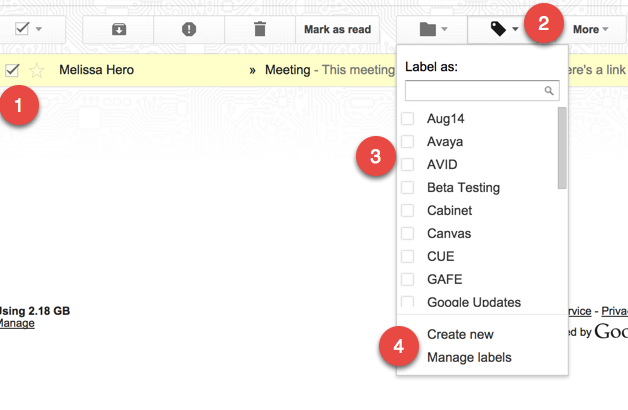
  1. Check the box next to an email (or multiple emails).  
  2. Click on the label icon.
  3. Check all the boxes of the labels you want for that email (or group of emails).
  4. Or, create a new label.
Note:  When you add a label to an email, it does not automatically move the email out of your inbox.  You must archive it.  OR, you can click on the folder next to the label to move it.  (But if you choose the folder, you can only move it to that one folder.)  


Filters
Filters can automate actions for you.  You can mark all emails with certain key words in the subject area, text, or from specific people as read, or have them skip your inbox, or be automatically marked with certain labels.  Here are instructions on how to set this up.  

Conversation View
The default view of emails is that they are grouped together in a conversation.  So all emails and their replies are linked together in a thread.  For example, if you send me an email, then I reply to it, and you send me another reply, all emails will show up as one conversation and take up one line in your inbox.  This will help keep conversations together and you can easily see all communication regarding that topic in one place.  When you are ready to archive a conversation, all emails in that thread will be archived.  (If you had the emails separate, you would need to archive each email individually.)  To make sure your emails are set to conversation view, go to the gear in the top right corner of your gmail.  Choose settings.  Scroll down, and turn Conversation View on.

Add Emails to your Calendar
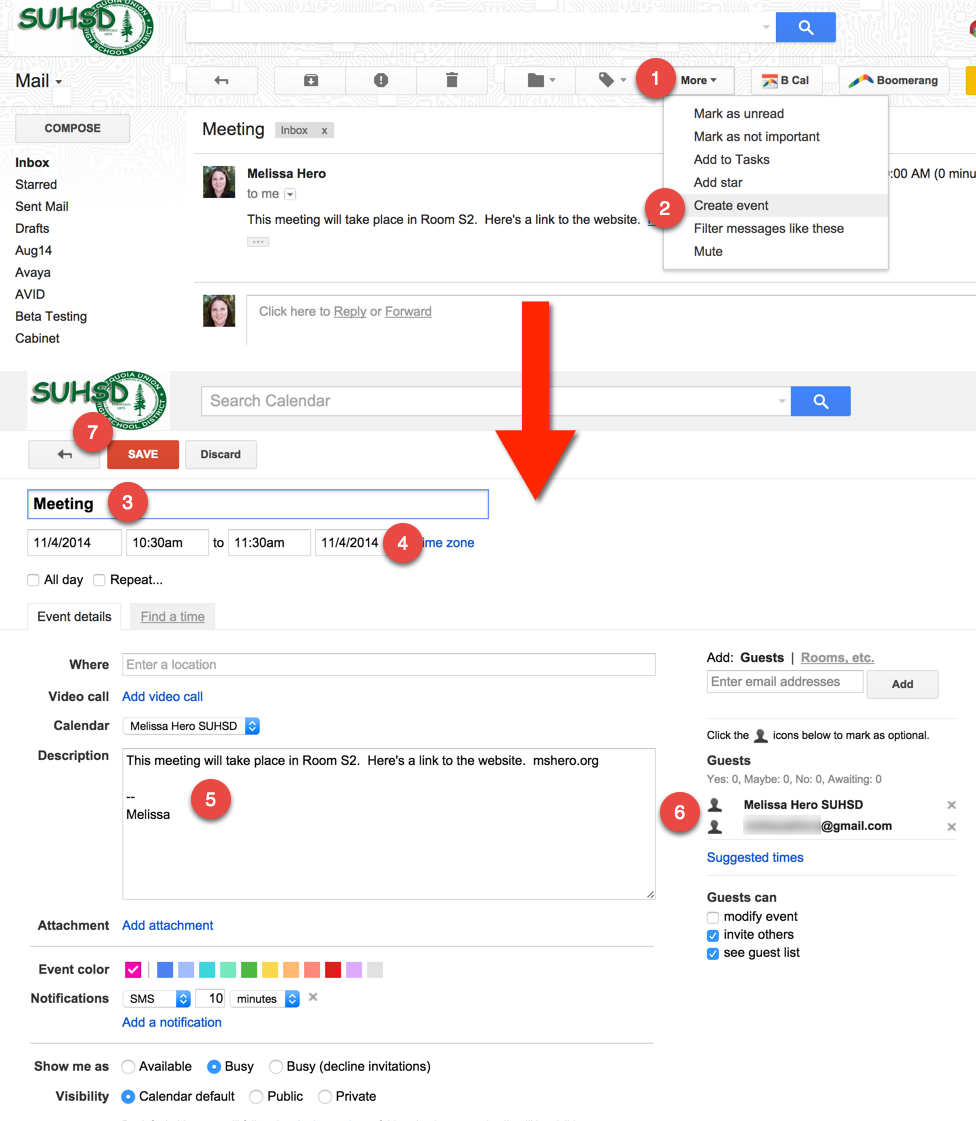
Many times I keep emails in my inbox because they relate to a meeting or event that is coming up.  Gmail allows you to create an event from a gmail, and the text of that email will be added into the details of the event.  Once I add an email to a calendar event, I can archive the email, and still find all of the relevant information in the details of the calendar event.  To add an email to a calendar event, follow the steps below:

  1. Click on "More" at the top of the email.  
  2. Choose "Create event".
  3. The title of the event will be the subject of the email.  You can edit this.
  4. Set the correct date and time of the event.
  5. The description will include the text of the email.  If the email was long, it may not include all of the text.  Just go back to the email, and copy and paste the entire email into this box.  
  6. The event will automatically include all people who the email was sent to as guests.  When creating an event, you may want to delete the guests so they all don't get email invites.  
  7. Press Save.

Create a Task from your Email
Sometimes an email doesn't represent an event that you want to place on your calendar, but it might be something you need to add to your to do list.  You can add emails to your Google Task list, and a link to the email will be added to the task.  Then you can go ahead and archive your email, because you'll be able to see it by clicking on the link in your task.  Below are instructions on how to add an email to a task:

  1. Click on "More" above the email.
  2. Click "Add to Tasks".
  3. It will create a task and your task window will open at the bottom right of your screen.  If you click on the arrow to the right of the task you can edit it and add a due date.
  4. You can change the name of the task.  It defaults to the subject of the email.
  5. You can pick a due date.
  6. Add in notes.
  7. The link to the related email allows you to open the email that may contain info, links, etc.
  8. You will see the tasks in your Google calendar on the date the task is due.  Make sure you turned on the "Tasks" calendar in your "My Calendar" list.
  9. When clicking on the task in your calendar, you will see the notes and can click on the related email link to go back to the email.

Hopefully these tips will help you get your inbox down to zero!  
If you have any other tips or suggestions, please add it to the comments. 


Tuesday, September 30, 2014

Gmail Notifications

Do you want to know when you've got mail?  

Groupwise had Notify which would show you if you had any new emails.  You can enable it so you would get popups and you could also look on the bottom right of your computer and see an envelope over the Notify globe icon.


There are a few different ways to get notified if you have new mail in Gmail.  

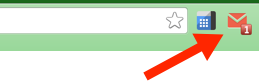
  • The "Unread Message Icon" Lab will put a number on the Gmail Icon in the Chrome tab.  I have found that it isn't very reliable yet, it doesn't update all the time.  
  • In your Gmail Settings, you can turn on Desktop Notifications.  This causes a window to pop up when you have new email (many teachers may not want this to pop up when projecting your screen).  This only works when you have Gmail open.
  • My favorite notification tool is the Checker Plus Extension.  This extension puts an envelope next to your Omnibox (the address bar).  You can also set the Checker Plus Extension to have popups for new emails (this works even if Chrome is not open), it can read your emails to you, or make a notification noise.  (I chose to have all the notifications turned off, but I still can see the number of emails I have on the little

     envelope).  Here are the instructions to install and set up this extension:
    • Go to this link:  Checker Plus Extension
    • Click on the blue button that says "+Free".
    • A pop up will appear.  Choose "add".
    • It will take a minute, but a new page will open to set up the options for the Checker Plus Extension.  If that doesn't happen, you will see the envelope next to your address bar.  You can right click on that icon and choose options.
    • Above are the settings I use.  You have the option to have a sound each time you get a new email, voice notifications will read you your email as it comes in, and desktop notifications will have a popup appear on your screen.  
    • If you have all of these options unchecked, you will still see the envelope light up red with a number when you have new emails.


Tuesday, September 23, 2014

Filtering your Gmail

One of the questions that I keep getting asked is how to stop the daily emails from School Loop.

In School Loop, you can choose to turn off the daily emails, however you will still receive changes in grade emails.  This email is important because it can help you determine if you accidentally made a mistake and overwrote a grade.  The trending emails are nice too, if you see a student's grade trending up or down, you can talk to them to tell them that they are doing a great job, or ask them what is going on.  It's a good idea to read these emails, but I don't necessarily need to look at them each day.


You can create a filter in Gmail that sends all of the incoming daily School Loop emails into a Gmail Label (think folder).  So you can still check those emails when you want, but they will skip your inbox.


Here are instructions on how to create a filter in Gmail.


You might set up filters for weekly sports schedule emails, attendance report emails, emails from list serves, etc.  

What are some other filters that you have set up?

Tuesday, September 9, 2014

Set Gmail as your Default Mail Client

Are you tired of Novell Groupwise popping up when you log in to your computer each morning?  Do you hate clicking on links to email addresses and Novell Groupwise still opens?  Here is how to fix this so everything works with your new @seq Gmail accounts.


Remove Groupwise from Startup

Groupwise Notify will no longer open when you start your computer.


Set Gmail as Your Default Email Client

When you click on links to emails, Gmail will open up.

Tuesday, September 2, 2014

Gmail's Undo Send

After switching to Gmail, the feature missed the most from Groupwise seems to be the ability to retract sent emails.  

Gmail does have a lab, called Undo Send, which allows you to press Undo after you have sent an email.  
Labs are a "testing ground for experimental Gmail features that aren't quite ready for primetime."   Many of the popular labs end up becoming a full feature of Gmail.  Undo Send is one of the popular labs that I am sure will be making it's way to primetime soon.
To set up Undo Send in your Gmail, follow the steps below.
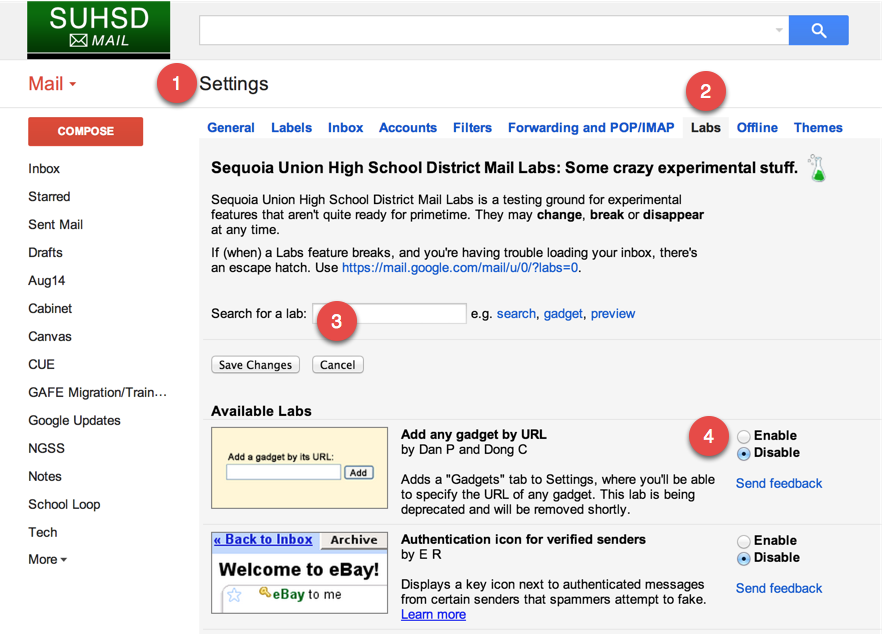
  1. Go to Settings.
  2. Click on the “Labs” Tab.
  3. Search for Undo Send (or scroll down until you see it).
  4. Choose “Enable” to add the Undo Send lab.
  5. Don’t forget to press “Save Changes” at the bottom of the page.
  6. After pressing save, you will automatically be taken back to your inbox.
  7. Click on Settings again.  You will be on the “General” Tab in your Settings.
  8. Scroll down to “Undo Send:”
  9. Change the cancellation period to 30 secs.
  10. Press "Save Changes" at the bottom of your page.
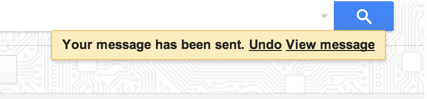
  11. Now, when you compose an email and then press send, you will get a yellow popup at the top of your inbox.   You have 30 seconds to press undo.  The email draft will show back up, and you can edit it, add an attachment, or delete the draft.
  12. The way that this works is that the lab delays sending your email for 30 seconds.  So no one will actually get the email if you press undo.  This is very different then how the retract email worked in Groupwise.


There are a lot of other great labs and some apps that you can use to simplify things when you use Gmail.  Here's some more info about other Gmail Labs and Apps.