Are you bored with the choices you have for the Google Slides themes? They just released some new ones (9/2/15), which is really exciting. But sometimes you want something a little different. Did you know you can create your own? You can add your logo so it automatically appears on each slide, change the default font, size, and color, or even add your own background images. So when you choose "new slide", it will already have all the right fonts, colors, images, etc. The directions below show how to edit your master which allows you to customize your slides layouts.
If you are not feeling too creative yourself, you can find some free to use slides templates that are not your same old boring Google Slides themes on Slides Carnival. Slides Carnival has about 30 different themes to choose from, and they are frequently adding more. They are free to use and include instructions on how to provide attribution to the creator.
Images It is important to teach students how to find Fair Use/Creative Commons images that they are free to use or modify in their work. When using Google Docs, Slides, and Drawings, students can search for images that are free to use from right within the Google App. In the following example, I'll show you how to do this in Google Docs, but you could follow the same instructions if you are using Slides or Drawings.
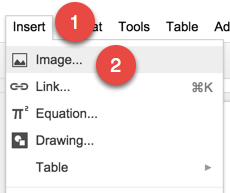
In the top menu bar, choose "Insert".
Then choose "Image".
Choose "Search".
Then type in your search term.
Click on the magnifying glass.
You can search Google, Life, or Stock Images by clicking on the different icons.
Then you will click on an image you want to use and press "Select" to add it to your document.
Research Tool to Automatically Cite Sources Another great tool in Google Docs and Slides is the Research Tool Bar. This allows students to find not only images but web resources. It will then automatically create footnotes for you to cite your sources in MLA, APA, or Chicago styles. Here are instructions on how to use the Research Tool Bar.
More Tips and Tricks for Student Research Using Google Tools
If you are interested in more tips and tricks to help your students do research, here is a presentation I gave at the Annual CUE conference this year.