Showing posts with label Time Savers. Show all posts

Tuesday, May 3, 2016

Save Some Time by Using the Preview Pane in Gmail


Do you miss the preview pane that allowed you to preview your emails from your inbox?


There is a way to enable this in Gmail.

  1. In Gmail, click on the gear.
  2. Then, choose "Settings".
  3. In Settings, choose the "Labs" tab.
  4. Enable "Preview Panes".
  5. Press "Save Changes" at the bottom of the page.
  6. Now, when you are back on your Gmail page, click the arrow next to the panes icon (at the top left of your screen) to choose how you want to view your preview pane.  (The sample above is showing "Vertical Split.")


Tuesday, April 28, 2015

Send Out Text Messages to Students Using a Safe and Easy Tool

Remind (formerly Remind101) is a great tool that allows you to send out messages (in the form of texts, emails, or notifications if you have the Remind app) to all of your "subscribers".  Your subscribers could be your students, players on your team, club members, members of your department, or staff on campus.  

You can even send images, voice clips, or documents through Remind.


The best part is that you will never see your subscribers cell phone numbers or email addresses, and they will never see your phone number. 

I have used Remind for years and my students love getting the text reminders.  They are not so great at checking and reading their emails, but they always check their texts!  You can send out reminders to bring their book to class, due dates, or even send a picture of the problem written out on your white board.  

A new feature of Remind is stamps.  Using stamps allows you to send out messages or questions to your subscribers, and they can reply with one of four stamps (star, check, x, or question mark).  It's a great way to get instant feedback, outside or inside of class.

Remind is rolling out a new "Chat" feature which allows you to message your subscribers individually, and you can set office hours to control when students can "chat" with you.  I have been able to test it out and it is really a great addition!

Remind is an amazing tool that allows you to send out messages instantly.  Our students are all glued to their phones, especially for texting.  Take advantage of that form of communication and send them information that you know they will read.  Click here to sign up and create a Remind class.  Here's a link with lots of information for teachers, including letters to send home to parents.

Tuesday, April 14, 2015

Updating a Vocabulary Lesson - 10 Important Words

One of my favorite vocabulary lessons, that I learned early in my teaching career, is called "Ten Important Words".  It is a great way for students to find meaning of words based on the context of the text, allows students to judge the importance of the words, collaborate and then summarize the text.  It was a little hard to manage some of the whole class collaboration.  Adding a little technology simplified the entire process, and allowed more class time to be spent on deeper conversations around the meaning of the words and the text.

The Original Assignment:
When assigning a short reading, students would first read the text, and then go back and highlight what they believed were the ten most important words.  I generally assigned this for homework, and the text size was never more than a few pages.  It could be an article or a small section of a chapter. 
Then, in groups of four, students would have to come up with one list that they all agree upon.  So students would go through and have to convince the their group that their words are more important than others.   It was so awesome to see students "fight" and "argue" for their words.  In their "arguments", they were using evidence from the text and comparing and contrasting the value of the word in making meaning of the text.  (They don't really fighting, but they do get really into discussing and advocating for their own words.)

Then, after the group decided on their one list, we would combine them and decide as a class what the test most important words were.  Next, students would define the class list of words and then write a one paragraph summary of the text, using those ten words in context.

As you can imagine, it was challenging to collect the words from each of the class groups and agree on the class list of the ten most important words.  So I decided to take advantage of some technology tools and using the student's cell phones.

Integration of Technology
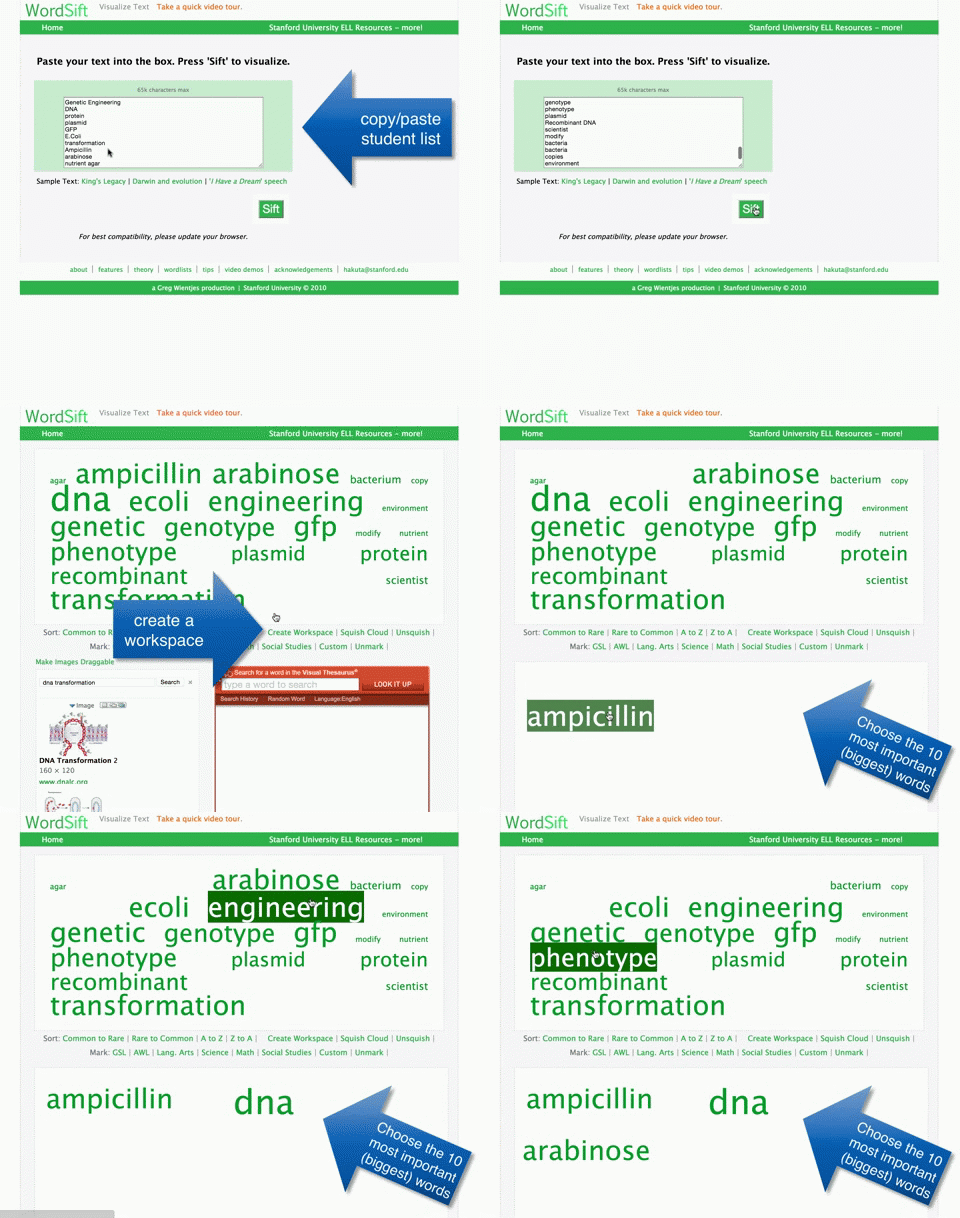
I set up a simple Google Form that just had one question for the groups to fill out, list your 10 important words.  One student in the group would pull out their cell phone and type in their list.


I would then go to the Google Sheet that contained the form data, and highlight all of the words typed in by my groups.
Next, I would go to wordsift.com and paste in the list of words generated by my student groups.  After pressing "sift", I get a word cloud, where the most used words are bigger than the others.  I can then click "create workspace" and drag the 10 most important words to one spot.  This process takes only a few minutes to do and saves a lot of class time.  Now, I can have a discussion with the class and ask why some of their words didn't make it to the class list, and discuss the definitions and the reading, before the students write their summaries. 


Other Uses for Word Sift
You can copy and paste in entire texts, poems, stories, speeches, etc.  When you sift, you not only get a word sift showing the most used words and a workspace, but can sort alphabetically or by common to rare words.  When you click on a word, you will find, images, and a visual thesaurus.  This can really help students understand and make meaning of the text or key ideas.

Students can even enter in their own writing and see if they use some words too much, or students can enter copy and paste their textbook in to see the big concepts or ideas.


Tuesday, March 10, 2015

Google Docs Speech Recognition Add-On

Many of us have students that have a hard time typing or writing, for a variety of reasons.  There is now an add-on in Google Docs, Speech Recognition, which allows students to "talk" to their computer, and their words become the text of the document. 

Students can speak in a wide variety of languages and dialects.  The add-on doesn't add in punctuation, so a student would need to go in and edit their document to polish it up.  However, this add-on is an amazing tool to help students get started with a writing assignment.

The video below shows you how to install and use this add-on. 

Tuesday, December 2, 2014

Save Time - Use Your Omnibox

The Omnibox is the search bar at the top of your Chrome Browser.  It does a lot more than just search for information or take you to your web site URL.


The Omnibox can be used as a timer, a calculator, search your google drive, and can even add events to your calendar.  

Timer
If you need a quick timer for a class activity, type timer and the amount of time into the Omnibox.  
It will start counting down.  You can even make the timer full screen by clicking on the blue image of "four corners" on the bottom right.


Calculator
Type in a problem to see it solved on a calculator.

Or just type in calculator.


You can even make line graphs....
and moving 3D graphs!


Search your Google Drive (or YouTube, other websites, etc.)
To be able to use the omnibox to search your Drive, you have to set it up in the Chrome settings.

1.  Go to settings.
2.  In the "Search" section, click on "Manage Search Engines".
3.  Scroll to the bottom to add your custom search engines.  
4.  In the first box, enter your new search name.  (Drive, etc.)
5.  Then in the keyword box, enter in the letter or shortcut you want to use.  (dr for Drive, yt for You Tube, etc.)  You can choose anything you want it to be.
6.  In the last box, enter in the web URL from below.
Drive
Keyword: dr
https://docs.google.com/?hl=en&tab=bo#search/%s 
YouTube
Keyword: yt
URL: http://www.youtube.com/results?search_query=%s&page={startPage?}&utm_source=opensearch
         Gmail
         Keyword:  gm
         URL:  https://mail.google.com/mail/u/0/#search/%s

7.  Now, when you want to search your Drive, Youtube, type in a dr or yt into your Omnibox, followed by tab.  You will see this:
8.  All you have to do now, it type in what you want to search your Drive or Youtube for.

9.  If a webpage has a search bar (ex. Amazon), right click on that search bar, then choose "Add As Search Engine" to add that search to your Omnibox too.


Add Google Calendar Events from Your Ominbox
To add a calendar event directly from your omnibox, you will do the same thing as above.  Go to settings, manage search engines, other search engines, and then add in the following:
Add Calendar Event
Keyword:  cal
URL:  http://www.google.com/calendar/event?ctext=+%s+&action=TEMPLATE&pprop=HowCreated%3AQUICKADD

Now, to use it, type "cal" into the Omnibox and press tab.   
Then, type in the name of the event, the date, and time.  It will bring you to the calendar event add page.  And then you can choose your calendar, edit the event, and then save the event!


One Last Tip
Have you ever had too many tabs open, and want to easily and quickly switch back and forth between tabs?  Press "Control" and the Number "3" (If I want to open the third tab).  On a mac, press "Command" instead of "Control".


Maybe Just One More....
To open a tab that you accidentally closed, type "Control", "Shift", and "T".  (On a Mac:  "Command", "Shift", and "T")