Showing posts with label Labs. Show all posts

Tuesday, September 30, 2014

Gmail Notifications

Do you want to know when you've got mail?  

Groupwise had Notify which would show you if you had any new emails.  You can enable it so you would get popups and you could also look on the bottom right of your computer and see an envelope over the Notify globe icon.


There are a few different ways to get notified if you have new mail in Gmail.  

  • The "Unread Message Icon" Lab will put a number on the Gmail Icon in the Chrome tab.  I have found that it isn't very reliable yet, it doesn't update all the time.  
  • In your Gmail Settings, you can turn on Desktop Notifications.  This causes a window to pop up when you have new email (many teachers may not want this to pop up when projecting your screen).  This only works when you have Gmail open.
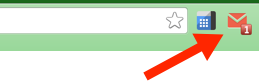
  • My favorite notification tool is the Checker Plus Extension.  This extension puts an envelope next to your Omnibox (the address bar).  You can also set the Checker Plus Extension to have popups for new emails (this works even if Chrome is not open), it can read your emails to you, or make a notification noise.  (I chose to have all the notifications turned off, but I still can see the number of emails I have on the little

     envelope).  Here are the instructions to install and set up this extension:
    • Go to this link:  Checker Plus Extension
    • Click on the blue button that says "+Free".
    • A pop up will appear.  Choose "add".
    • It will take a minute, but a new page will open to set up the options for the Checker Plus Extension.  If that doesn't happen, you will see the envelope next to your address bar.  You can right click on that icon and choose options.
    • Above are the settings I use.  You have the option to have a sound each time you get a new email, voice notifications will read you your email as it comes in, and desktop notifications will have a popup appear on your screen.  
    • If you have all of these options unchecked, you will still see the envelope light up red with a number when you have new emails.

  

Tuesday, September 2, 2014

Gmail's Undo Send

After switching to Gmail, the feature missed the most from Groupwise seems to be the ability to retract sent emails.  

Gmail does have a lab, called Undo Send, which allows you to press Undo after you have sent an email.  
Labs are a "testing ground for experimental Gmail features that aren't quite ready for primetime."   Many of the popular labs end up becoming a full feature of Gmail.  Undo Send is one of the popular labs that I am sure will be making it's way to primetime soon.
To set up Undo Send in your Gmail, follow the steps below.
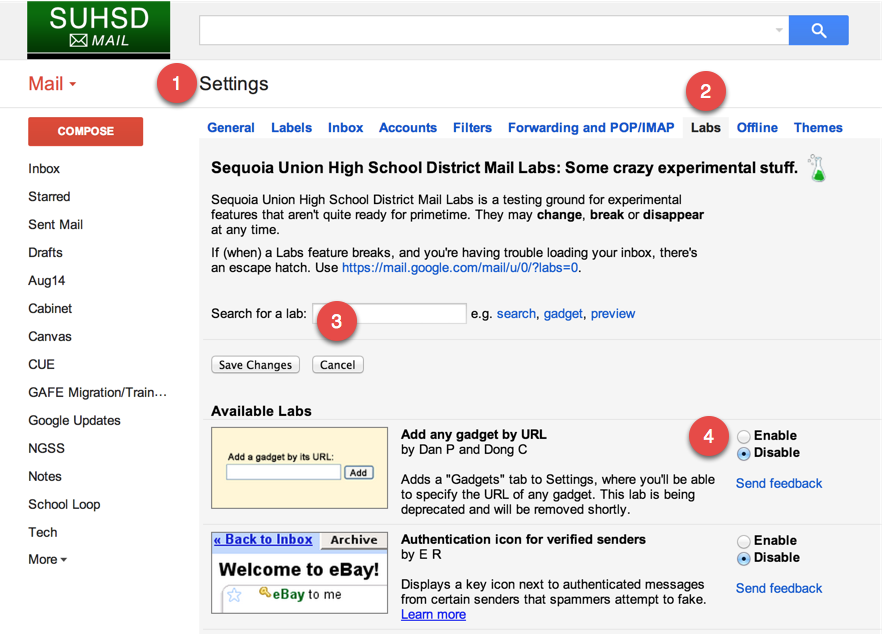
  1. Go to Settings.
  2. Click on the “Labs” Tab.
  3. Search for Undo Send (or scroll down until you see it).
  4. Choose “Enable” to add the Undo Send lab.
  5. Don’t forget to press “Save Changes” at the bottom of the page.
  6. After pressing save, you will automatically be taken back to your inbox.
  7. Click on Settings again.  You will be on the “General” Tab in your Settings.
  8. Scroll down to “Undo Send:”
  9. Change the cancellation period to 30 secs.
  10. Press "Save Changes" at the bottom of your page.
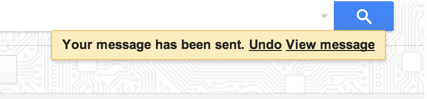
  11. Now, when you compose an email and then press send, you will get a yellow popup at the top of your inbox.   You have 30 seconds to press undo.  The email draft will show back up, and you can edit it, add an attachment, or delete the draft.
  12. The way that this works is that the lab delays sending your email for 30 seconds.  So no one will actually get the email if you press undo.  This is very different then how the retract email worked in Groupwise.


There are a lot of other great labs and some apps that you can use to simplify things when you use Gmail.  Here's some more info about other Gmail Labs and Apps.