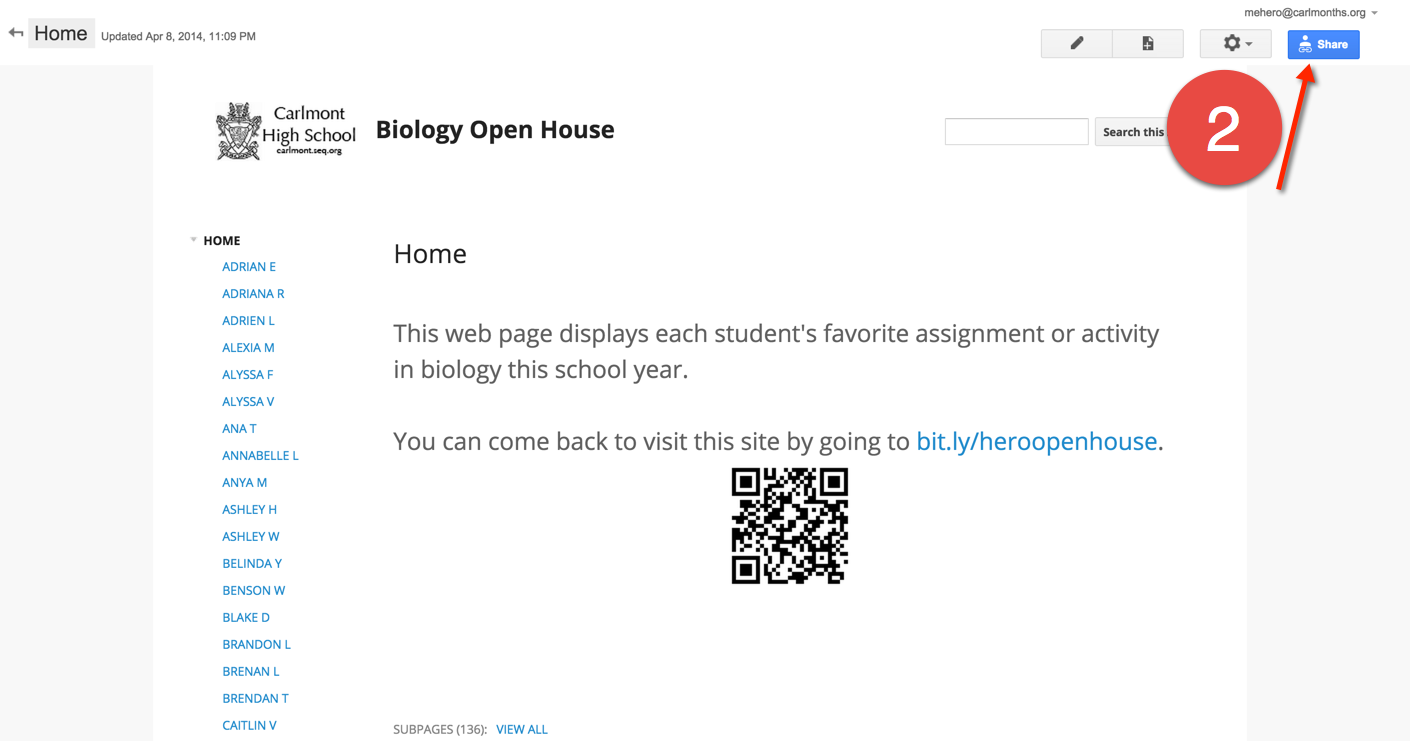
Many of us had Google Sites set up on our old school domains or on personal Google accounts (where there is a storage size limit). Follow the instructions below to move your site over to our new Seq Domain.
Go to your old Site, logged into your old Google account.
Click on "Share".
Invite your "@seq.org" email address and change "Can edit" to "Is owner". Press "Send". You may be asked to give permission to share the site with someone outside of your domain. Say "yes".
Since we have begun a new semester, and all teachers are required to post assignments in School Loop and use the School Loop gradebook, we have been receiving a lot of questions. In this post, many of the frequently asked questions will be addressed. Please read over the FAQs below to see if it answers your questions before you send an email to get School Loop help. Any questions you have about School Loop can be sent to icsupport@seq.org. Submitting Grades During the Marking Period - Where Can Grades Be Viewed? When you submit grades in the red box on the right side of your screen during the marking period, these grades do not ever show in School Loop. These grades and comments are put in an file which is then imported in to Infinite Campus after the grading period ends. So if you manually enter grades or modify any grades from your gradebook (NAs, FAs, Incomplete's, etc.), this will not be reflected or viewed anywhere in School Loop. School Loop shows you grades in progress if you use the School Loop gradebook. When you submit grades during the grading window, whatever you submit will only be viewed in Infinite Campus, after the grading window has closed and the import takes place. The import will be complete by the Friday after the grading window closes. Show/Hide Dropped Students If you have had some students drop your class, they will have a line through their name. You may not want to see them in your gradebook. To hide them, at the top of your gradebook, choose "Hide Dropped". If you need to see them and their grades/assignments, click "Show Dropped".
These dropped students will still be in the middle of your roster, and will be included in the total number of students in your class. You may want to move them to the end of your roster, so when their hidden, the number of students in your class is accurate.
To move them, go to the settings gear > select a gradebook for the class under "Gradebook Settings" > Under "Student Order" select "Go" > then drag the dropped students to the bottom of your roster.
Finding & Printing Previous Gradebooks Now that it is second semester, and when clicking on "Gradebooks", you see the second semester gradebook. You can still go back and see, print, and even edit (if needed) previous gradebooks.
Website
In student's and parent's portals, they can click on your name to go to your School Loop website. (If you have a School Loop site set up and published, your name will be blue and your site will be hyperlinked to your name.)
If you would like to use your own personal website (Google, Wix, Weebly, etc.) instead of a School Loop website, please fill out this form to have your personal site linked to your School Loop account. (You still need to publish assignments to the School Loop calendar for all due dates, and add in resources, handouts, instructions for big projects, papers, etc.)
More School Loop Questions?
You will be able to find many answers to your questions on our SUHSD School Loop website. There are many presentations with step by step instructions with screen shots. Please check out the site and be sure to bookmark it for future reference. If you have any School Loop or IC questions, please emailicsupport@seq.org.
Have you ever needed to take a picture of your computer screen?
To get help with a tech problem you are having.
To make a how to page for your students.
Or to copy something to put on a presentation?
Below are some easy ways (on PCs, Macs and Chromebooks) to take screenshots of your computer screen. Screenshots on a PC Entire Screen - copies image to your clipboard: Print Screen
Single Window- copies image to your clipboard: Alt-Print Screen Partial Screen:Use the Snipping Tool program built into Windows
click on the Windows icon on the bottom left of your computer screen.
Screenshots on a Mac Entire Screen - saves an image onto your desktop: Command-Shift-3
Partial Screen- saves an image onto your desktop: Command-Shift-4
*If you press Control at the same time as either of the options above, it won't save the picture to your desktop. Instead, it will copy it to your clipboard, and then you can paste it into an email or document.
Screenshots on a Chromebook Entire screen - saves an image in your downloads folder:
Control-Windows Switcher Partial Screen- saves an image in your downloads folder: Control-Shift-Windows Switcher
Now that we are using School Loop, more lines of communication have opened up between parents and teachers. Parents can even use School Loop in Spanish and Chinese. That means that some parents are now communicating and sending emails in their native language to teachers, but many times a teacher does not speak or read this language. Gmail actually has Google translate built into Gmail, which can easily translate messages in other languages into English. So if you have your Loop Mail being forwarded to your Gmail, you can instantly translate it into English. Forward LoopMail to your Gmail
The first step is to make sure you are autoforwarding your Loop Mail from School Loop to your Gmail account. Here's how to do that:
Translate Mail into English Next, you can translate the email into English.
Google Translate isn't a Perfect Solution Google Translate is not perfect, so you must be aware that the wording may be off. Here's a fun example of how "not perfect" Google Translate is.
If you are not a fan of the Fresh Prince, and are looking for a more recent song, check out this Frozen Google Translate video.
Check with your School for Procedures and Translation Services
Also, while you can translate this email into English, you can't translate your response in Gmail. Many schools in our districts have a translator who will translate responses or contact parents for you. While translating the emails in Gmail is helpful and you get an idea of what the parent is saying, I would not recommend using Google Translate as your communication method. Please speak with your department chair or IVP to find out your school's procedures for translation services.